Track Client Projects from a WordPress Website
Your WordPress site can connect clients to a separate SuiteDash workspace where your team tracks project status, tasks and shared files. Start with one project and verify what each person can see.

Connect the website to the workspace
The WordPress Direct Login plugin provides a login from your site into SuiteDash. Project tracking takes place in the separate SuiteDash workspace. Check the official plugin listing for installation. If tracking must happen inside WordPress, compare a WordPress-native tool as well.
Track the status of a project
A SuiteDash project organizes work around an objective and can contain tasks. Each project requires a client. You can choose a project status, add an estimated completion date and assign people. Test the roles and visibility settings your team will use.
Choose how to show progress
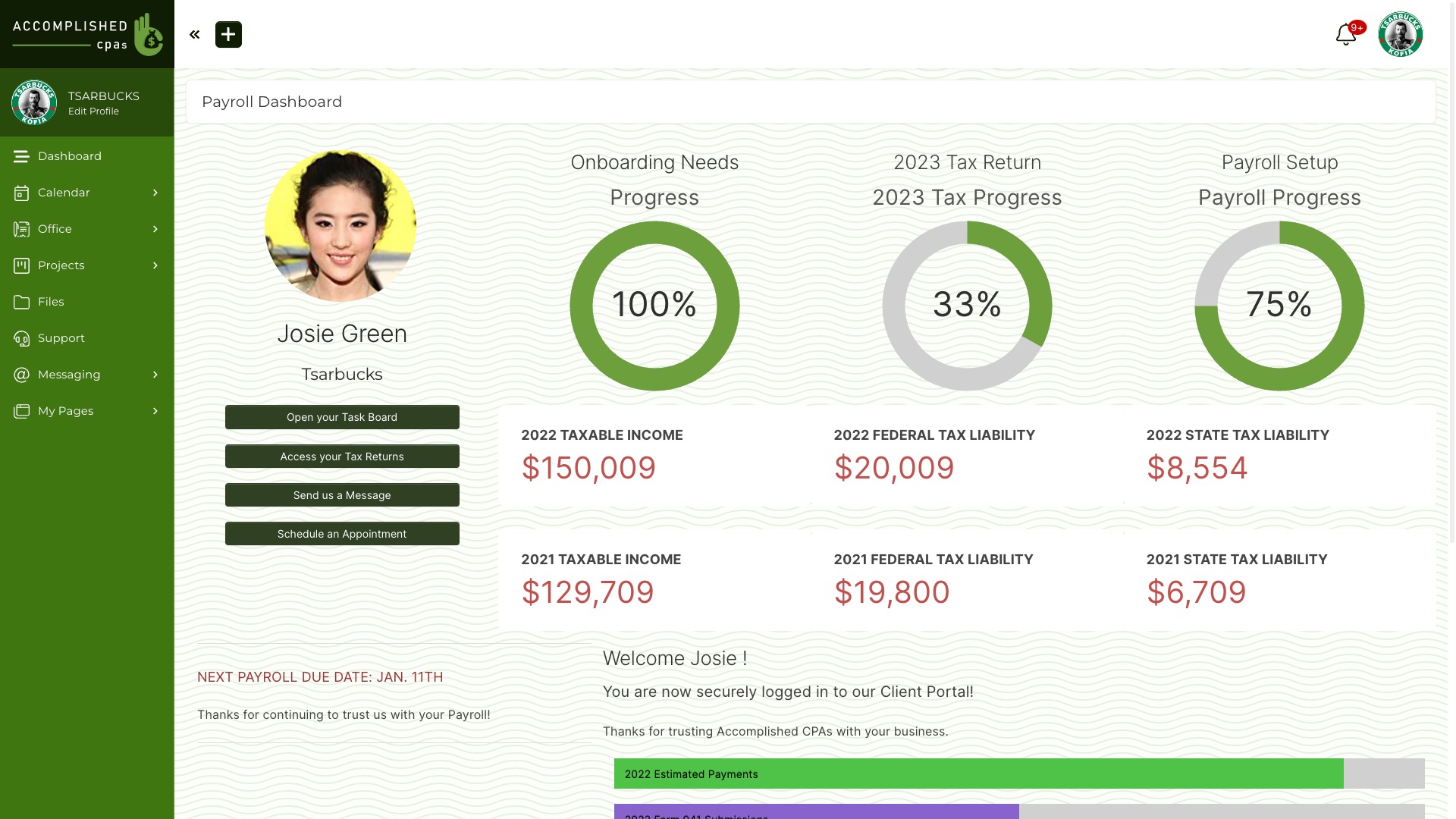
The optional project dashboard can show clients an overview. If you display progress, it can be based on completed tasks, project phases or a manual value. Project completion does not automatically follow task completion by default; the project settings offer options for that behavior.
Check project file access
Project Files are organized within the project. Visibility differs between private project files, public project files and task files, and project settings control client file access. Test the actual client and team views before uploading sensitive documents.
Run a small tracking test
- Create a test project with a test client, status and estimated completion date.
- Add representative tasks and assign eligible people.
- Choose whether to enable the project dashboard and show status or progress.
- Check file access and project visibility as each intended role.
- Test the optional WordPress login connection before inviting clients.
Compare current plans and any optional services alongside the cost of your WordPress site. See the separate guides to project planning and task management for related workflows.