Buyer guide
Client Document Sharing Portals: Ten Approaches to Compare
Sharing one file with a client is different from running an ongoing client workspace. Some tools center on folders and links; others offer document requests, tasks, messages or a broader portal. These ten approaches are listed by workflow, not ranked. Test the same client handoff in each product before choosing.

First, define what the client must do
Write down the client journey before comparing feature lists. Will the client only view a document, upload a requested file, or return each week to see tasks and invoices? Test who can invite a client, what the client sees, whether a link can be forwarded, how access is removed, and which plan includes the settings you need.
- Can a client upload without an account, or must they sign in?
- Can you give view access without edit or download access when needed?
- Who can create and revoke links, folders and invitations?
- Can you separate two clients’ files and test that separation?
- Where do requests, messages, project updates and invoices live?
- What do storage, external users, add-ons and administration cost in the plan you would buy?
A branded folder link may be enough for occasional exchange. A service business with recurring work may need a persistent client portal. Product and plan details can change; the links below lead to each vendor’s own documentation for the named capability.
Client workspaces and document requests
1. SuiteDash
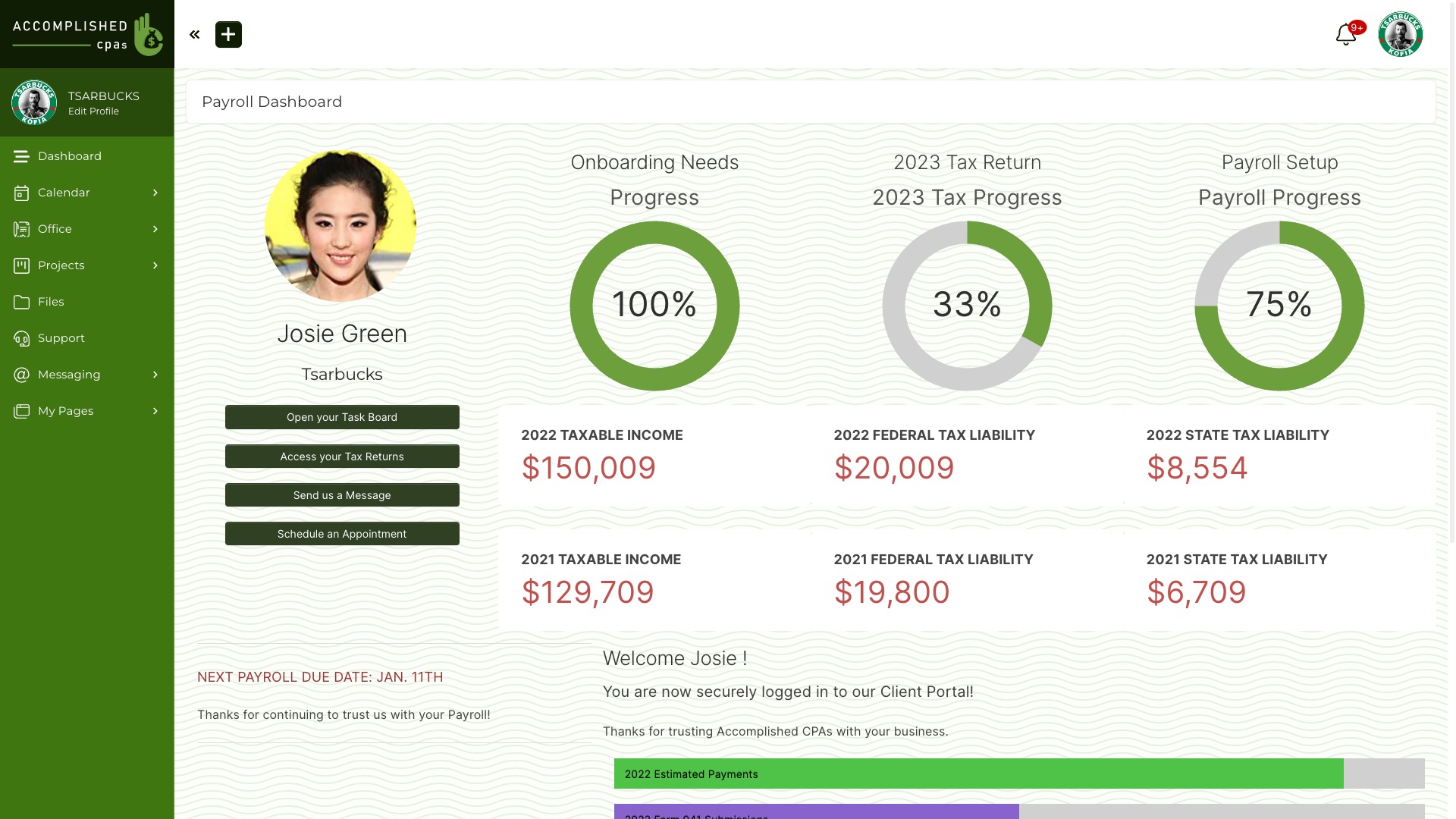
SuiteDash connects Files and Shared Folders to a client portal, CRM, projects and billing. You can choose view or edit capability for a Shared Folder and use File Requests when collecting documents. Configure roles and permissions before inviting a real client. Test the client and staff views together, then check plan and storage limits.
2. ShareFile
ShareFile documents a client portal with folders and inbox access; higher plans add client tasks such as request lists, forms and eSignatures. Test the exact client journey and plan you need, including document requests and who can see the returned files.
File-first sharing and collaboration
3. Dropbox
Dropbox supports shared links, folder invitations and file requests. A recipient without a Dropbox account can view a shared link, but editing a shared folder requires a signed-in account. Test your team admin’s external-sharing settings and the client’s upload path.
4. Google Drive
Google Shared drives organize team-owned files and allow links or invitations when settings permit. A Workspace administrator can restrict external sharing. Test whether the client needs a Google account or visitor-sharing route in your configuration, and who retains access when staff change.
5. Microsoft OneDrive
OneDrive lets a user share files and folders with people outside an organization when the tenant permits it. Microsoft’s external-sharing overview explains how OneDrive and SharePoint settings interact. Test a named client invitation and a link under your organization’s policy.
6. Box
Box distinguishes invited folder collaborators from shared links. Its collaboration guide describes persistent folder access and link-based viewing. Test the external collaborator role, the plan rules that apply to that user, and what happens when a folder is moved or access is removed.
Document controls and team repositories
7. SharePoint
SharePoint supports team sites and document libraries with external sharing governed by Microsoft 365 settings. The same Microsoft guide covers both SharePoint and OneDrive. Test site membership, folder permissions and the client experience separately from a OneDrive link.
8. Tresorit
Tresorit’s shared links let external recipients view and download without editing through the link; plan-dependent controls can add restrictions. Its file requests collect documents from external people. Test the receiving and return paths you need rather than assuming one link supports both.
9. Egnyte
Egnyte’s shared-link options include different recipient and password rules when an administrator enables them. Test link creation, expiration, audit and upload permissions in your selected plan and account settings.
10. Zoho WorkDrive
Zoho WorkDrive offers team folders and admin-controlled external sharing. Check whether client invitations, links and uploads are enabled in your team. This list used to name Zoho Docs, which Zoho discontinued in March 2023.
Run one identical client test
- Create two sample clients and one staff member in the product or a realistic test account.
- Request a document from Client A, receive it, and share back a revised version.
- Confirm Client B cannot see Client A’s folder or link.
- Remove Client A’s access, then test the old invitation and shared link.
- Record each step that needs a paid plan, another product or manual work.
For sensitive records, also review the relevant privacy terms, account controls and agreement before moving real client data. A feature claim alone is not proof that your configuration meets a legal or security requirement.
Choose from the workflow, not a generic rank
Use a file-first tool when sharing and collaboration are the main jobs. Consider a dedicated client portal when requests and client tasks need a consistent home. Consider SuiteDash when the same client also needs projects, messages, invoices and files in one configured workspace. Compare the cost of the complete plan and the work your team must administer.
You can test SuiteDash with two sample clients and check the File Exchange feature and current plans before making a choice.