Invoicing Software for Service Businesses
Good invoicing software helps you agree on the work, send a clear bill, offer a practical way to pay and see what remains outstanding. For a service business, the bigger decision is how billing connects to client records, projects and the client portal.

This guide uses current SuiteDash Help and product pages checked in October 2026. Test your own payment gateway, currency, tax settings and plan before sending a live invoice.
What to evaluate in invoicing software
Begin with your billing model. A fixed-fee project, hours worked, installment plan and recurring service each need a different invoice flow. The right software should let a client understand the charge, find the payment action and review the result. Your team should be able to find the related client record and any remaining balance.
Invoice creation
Check line items, due dates, terms, taxes, discounts and a readable PDF. Confirm whether a proposal or approved estimate can become an invoice.
Payment options
Confirm which gateway you can connect, the payment methods it supports in your country and whether your invoice currency is accepted.
Client access
Test the email and the client portal. Make sure the client can find the invoice, view its status and complete the available payment path.
Follow-up
Check due-date reminders, past-due rules and reports. Decide who monitors partial and offline payments.
SuiteDash combines invoicing with CRM, projects and a client portal. It is a useful fit when the same service team manages both the work and the client billing. If your main requirement is general ledger accounting, payroll or tax filing, include a dedicated accounting product in your evaluation.
How SuiteDash handles client billing
Create an invoice for a client, choose Items, Packages, taxes and discounts, set a due date, then select an available gateway for online payment. You can also disable online payment for an invoice. SuiteDash Help documents draft and issued invoices, partial payments and installment options; check which settings fit your agreement.
You can turn an approved estimate into an invoice. Staff can add a paused Timer as billable time to a new or existing invoice or an accumulating generator. That is a staff action, so test it with a representative project rather than assuming every project expense or milestone becomes an invoice line automatically. Milestones can create invoices automatically when you set that up: a completed Project or Phase can apply an On-Demand Invoice Generator you have configured.
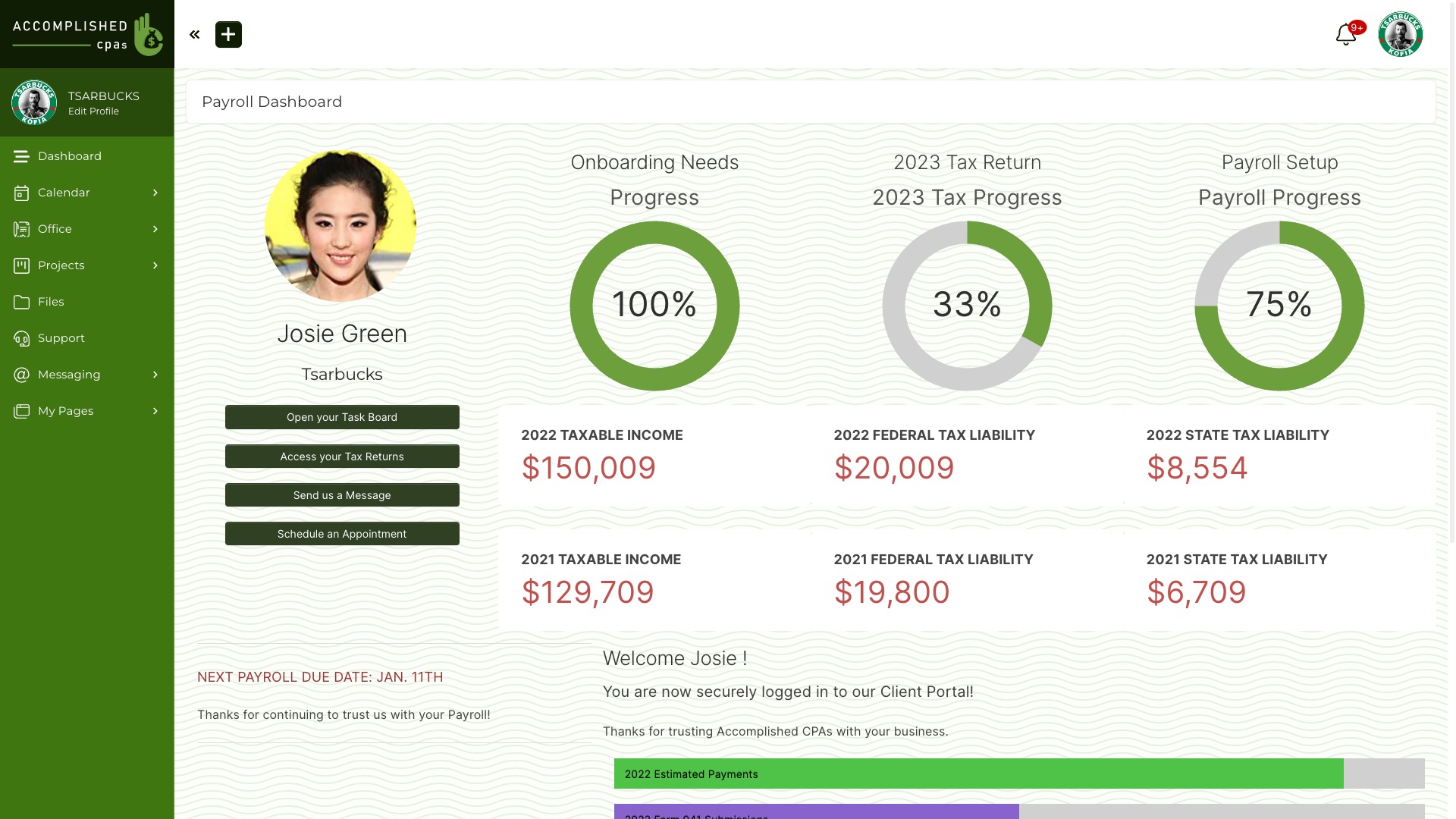
Clients can use My Billing Dashboard to find their billing items. Connect your own payment gateway and check its rules before offering a payment method. SuiteDash documents Stripe, Braintree, PayPal and Authorize.net among gateway choices; capabilities differ by gateway and configuration. A custom external payment link is possible, but Help says that payment is not tracked automatically in SuiteDash.
Two ways to bill on a schedule
A Recurring Generator creates and sends a new invoice on the schedule you configure. The client pays that invoice. A Subscription Plan starts after the initial payment and charges the client’s payment method on its configured schedule, subject to gateway support. Choose based on the payment arrangement the client accepted.
For changing charges, review Accumulating Generators. They let staff add Items for scheduled invoicing. A configured minimum can defer an invoice. If the charge needs staff review or a new agreement each cycle, do not treat it as a fixed automatic subscription.
Due-date reminders and past-due automations are configurable. SuiteDash Help notes that a recurring Payment Due Reminder and a one-time past-due automation can both contact the same client. Check both settings before enabling them together. Invoice settings documents the reminder options.
Invoice generators: what each one does
An invoice generator is a saved setup that creates invoices. It is not an invoice itself. SuiteDash has four ways to create invoices for client work, and they share a single shared data layer with your CRM, Projects and Client Portal.
| Generator or action | What it creates | What can start it |
|---|---|---|
| On-Demand Invoice Generator | One invoice from saved items, terms and due date; dynamic items can take a rate or quantity from a number custom field | An automation: a completed Task, Phase or Project, a new Project from a Project Generator, or another trigger you set |
| Recurring Invoice Generator | A new invoice on a schedule, which the Client pays each time | Created by staff, or started by an automation, for example when a Project completes |
| Accumulating Invoice Generator | Scheduled invoices from items, Tasks and Timers staff added; a configured minimum can defer an invoice | Its schedule; staff add the items |
| Subscription Plan | An automatic charge on the Client’s saved payment method after the first payment, subject to gateway support | The Client’s first payment; automations can activate or cancel plans |
Approved Estimates can also become invoices. Turn on conversion for an Estimate and SuiteDash creates the invoice when the Client approves. With a dynamic Estimate, the invoice includes only the lines the Client kept.
Three billing workflows, step by step
You build and configure each workflow once, then it runs the same way for every Client.
1. Estimate approved, invoice sent, work started
Dynamic Estimate (Estimates toolkit): send an Estimate with line items. The Client can choose items and quantities, and accept by the “valid until” date.
Convert on approval (Estimates to Billing): with conversion turned on, approval creates the invoice with the lines the Client kept and the relative due date you set, then emails the Client.
Payment (Billing toolkit, your gateway): the Client pays from the email or their Billing Dashboard.
Start the work (Automations, Projects toolkit): set the deposit invoice’s automations to start your Project Generator when it is paid.
2. Project milestones billed as they finish
Phases (Projects toolkit): each deliverable is a Phase.
Phase completion (Projects to Billing): each Phase applies its own On-Demand Invoice Generator for the Project’s Client.
Project completion (Projects to Billing): the final invoice goes out, and a Recurring Invoice Generator can start ongoing support.
3. Hours and small jobs, billed monthly
Timers and Tasks (Time Tracking, Projects): staff record the work.
Add to the Client’s Accumulating Invoice Generator (manual step): staff add finished Timers and billable Tasks. Work requests can also be added to a new or existing invoice from the Work Requests list.
Monthly invoice (Billing toolkit): the generator invoices the added items on its schedule. A configured minimum can defer an invoice, carrying the items forward.
Data passed in all three: the Client record, which links the invoice to that Client’s portal, Projects and CRM history.
Suggested starting points for billing
The Workflow Designer’s Starting Points include billing models you can adapt. Each one is a workflow you build and configure in SuiteDash.
| Starting Point | Billing in the workflow |
|---|---|
| SaaS Company | A Subscription Plan, billing through Recurring Invoices, Subscription status tracking, and Email Cannons that follow up on failed payments |
| Accounting & Tax Firm | Monthly recurring Tasks and Recurring Invoices |
| Event Management | A retainer deposit invoice and milestone payment triggers |
| Photography / Videography | A booking deposit invoice after a Proposal and Digital Signature |
See all 14 project and billing workflows on the Projects and Invoicing tour.
A practical buyer test
- Create one fixed-fee invoice with your actual logo, terms, tax setup and preferred currency.
- Connect a gateway you can use and test the client payment flow. Confirm the gateway’s fees and supported methods in its own current terms.
- Track a short project Timer and add it to a second invoice. Check the line item and amount before sending.
- Use a test client account to open both invoices from email and My Billing Dashboard on desktop and phone.
- Set a due date and review the reminder and past-due configurations so the client does not receive duplicate chasers.
- Test one scheduled invoice and one Subscription Plan separately. Confirm which requires the client to pay again.
- Review invoice, payment and outstanding-balance reports with whoever reconciles your books.
Compare the complete workflow, including your gateway, accounting process and plan. Use current SuiteDash pricing and your own billing volume rather than an old competitor price table or a fixed savings estimate. For a deeper look at the client-facing screens, visit the invoicing feature tour. The recurring billing guide focuses on subscription and scheduled-invoice decisions.
SuiteDash and other invoicing tools
| SuiteDash | FreshBooks | QuickBooks Online | Wave | Zoho Invoice | Stripe | |
|---|---|---|---|---|---|---|
| Main job | Run the Client journey from CRM and Proposal to Project and invoice | Invoicing, expenses, accounting reports and Projects (FreshBooks Projects and accounting, read November 8, 2026) | Accounting, expenses and project profitability (QuickBooks project costing, read November 8, 2026) | Invoicing, bookkeeping and accounting for small businesses (Wave small business software, read November 8, 2026) | Dedicated invoicing in the Zoho family (Zoho Invoice features, read November 8, 2026) | Payments, invoicing and subscriptions (Stripe Billing, read November 8, 2026) |
| Projects and time | Project Templates, Tasks and Timers connected to invoices | Projects with tracked time and project-based invoices (FreshBooks Projects, read November 8, 2026) | Projects on Plus and Advanced; billable time can go on invoices (QuickBooks project expenses, read November 8, 2026) | Check current features | Projects, Tasks and timesheets with billable hours that can become invoices (Zoho Invoice timesheets, read November 8, 2026) | Check current plan/features |
| Client-facing space | Branded Client Portal with selected Project work, files, messages and billing | Project collaboration with Clients | Customer billing and payment workflows (QuickBooks invoicing, read November 8, 2026) | Check current features | Customer Portal for quotes, invoices, timesheets and optional Project details (Zoho Invoice customer portal, read November 8, 2026) | Hosted customer portal for payment details, invoices and subscriptions (Stripe customer portal, read November 8, 2026) |
| Recurring billing | Recurring and Accumulating Invoice Generators, and Subscription Plans | Recurring billing and retainers (FreshBooks retainers, read November 8, 2026) | Check current plan | Recurring invoices with Wave Payments or Pro (Wave recurring invoices, read November 8, 2026) | Recurring invoices (Zoho Invoice features, read November 8, 2026) | Stripe Billing subscriptions (Stripe Billing, read November 8, 2026) |
| Full accounting | No; keep an accounting product | Yes: expenses, bank reconciliation, reports (FreshBooks accounting, read November 8, 2026) | Yes (QuickBooks accounting, read November 8, 2026) | Yes: bookkeeping and accounting tools (Wave small business software, read November 8, 2026) | Connects to other Zoho products (Zoho Invoice integrations, read November 8, 2026) | Check current plan/features |
| Billing triggered by project events | A completed Project or Phase, or a new Project, can create a pre-configured invoice | Check current features | Check current features | Check current features | Check current features | Check current plan/features |
Competitor details checked November 11, 2026 against each vendor’s own documentation. SuiteDash can use your own Stripe account as its payment gateway, so the two can work together. Confirm current plans before buying.
Compare the best invoicing software for service businesses.
What it does not do
It is not a full accounting system. Keep an accounting product for bookkeeping, reconciliation and tax filing.
It does not choose tax jurisdictions or calculate exchange rates for you.
Tracked time and Tasks do not add themselves to invoices. Staff add them.
A payment made through a custom external payment link is not tracked automatically.
Invoice automations run for Clients, not Prospects.
Invoicing software questions
Can SuiteDash automatically charge a recurring invoice?
A Recurring Generator creates an invoice for the client to pay. For an automatic scheduled charge, use a Subscription Plan with a supported gateway after the initial payment.
Can project time become an invoice line?
Yes. Staff can add a paused Timer to a new or existing invoice or an accumulating generator. Check the recorded time, rate and invoice before sending it.
Does SuiteDash calculate tax rules or exchange rates automatically?
SuiteDash provides configurable tax rates and invoice currencies. Set the correct tax treatment and check your gateway’s currency rules; do not rely on automatic jurisdiction selection or exchange-rate calculation.
Which payment gateways can I use?
SuiteDash Help documents Stripe, Braintree, PayPal and Authorize.net gateway options. Available methods and currencies depend on the gateway and your configuration. Test your exact invoice and merchant account.
What is an invoice generator in SuiteDash?
A saved setup that creates invoices. On-Demand Invoice Generators create one invoice when an automation calls them, Recurring Invoice Generators create one on a schedule, and Accumulating Invoice Generators collect items staff add for scheduled invoicing. A configured minimum can defer an accumulating invoice.
Can an approved estimate become an invoice automatically?
Yes. Turn on conversion for the Estimate. When the Client approves, SuiteDash creates the invoice and emails the Client. A dynamic Estimate invoices only the lines the Client kept.
Can SuiteDash invoice when a project or phase is finished?
Yes, when you set it up. Add an On-Demand Invoice Generator action to the Project, its Project Generator, or a Phase. The invoice uses that generator’s items, or a rate taken from a Project custom field, not the Project’s tracked hours.
Why didn’t my automation create an invoice?
Check three things: the contact is a Client, not a Prospect; the invoice generator is active; and the action is saved on the Project, Phase or Project Generator that actually ran.
Can clients see their projects and invoices in one place?
Yes. Clients see the Projects you share and their Billing Dashboard in the same branded portal.
Test one complete billing journey
Create a sample client, send an invoice and inspect its payment and follow-up path from the client’s view. Then compare your ongoing billing needs against current plan and gateway terms.
Start a SuiteDash trial or review the billing features.