User Story: CRM & Client Management
SuiteDash CRM is the operating record for the people and Companies a business serves. It records the relationship itself—who the person or business is, their commercial status, who owns the relationship, and the work, communication, billing, and history connected to it. It complements the existing CRM feature page; it does not replace that page or make CRM a separate Portal-permission system.
This is the reference guide for an administrator modelling an individual inquiry, a business with several people, an imported customer list, a sales opportunity, a paid onboarding route, or a paused customer relationship. Projects, Files, Invoices, Forms, FLOWs, and Automations keep their own settings and visibility rules. CRM connects those records to the right person or Company; it does not override those rules.
At a glance
| This experience lets you | Important boundary |
|---|---|
| Create individual Contacts and Company records with Lead, Prospect, or Client Roles. | A Lead cannot access the Portal. A Prospect or Client still needs an invitation and the relevant connected-tool assignments. |
| Keep a Contact or Company Dashboard as the relationship workspace. | The Dashboard shows records assigned to that specific Contact or Company; it is not a universal visibility bypass. |
| Associate people with a Company and identify a Primary Contact. | A Company and its Primary Contact are separate records with independent Roles. A Prospect or Client Company needs a Primary Contact with an email address for Portal access. |
| Track sales activity with Deals, pipelines, stages, Follow-ups, Notes, and history. | A Deal tracks sales progress; it does not grant Portal access or delivery access. |
| Add or update records manually, through Kickoff Forms, or by CSV import. | The import method and Target selection determine where Automations and Target Custom Field values attach. |
| Set a Contact or Company inactive while retaining history, then reactivate it if needed. | Inactive records cannot receive new assignments or be used for Secure Messaging or Chat. Deletion is permanent. |
CRM terminology and record model
Contact, Company, and Primary Contact
A Contact is an individual person. A Company is a business record with associated Contacts. Its Primary Contact is the actual person who represents the Company in the platform. The distinction is fundamental: a Company can carry business history and assignments, while a person is the one who receives a login, represents the Company, and interacts with its Portal experience.
Associated Contacts can be managed on a Company without being its Primary Contact. An Associated Contact can be associated with only one Company at a time. When a Company needs a different representative, use Change Primary Contact from the Company's options. The former Primary Contact becomes a secondary Contact of that Company by default.
Lead, Prospect, and Client
SuiteDash uses three CRM Roles for Contacts and Companies.
- A Lead is a potential customer the account wants to track. Leads cannot access the Portal.
- A Prospect has expressed interest but is not yet committed. Prospects can be invited to the Portal.
- A Client is an official paying customer. Clients can be invited to the Portal and, where the relevant tool allows it, receive Projects, Tasks, Invoices, Documents, and other connected work.
Role is meaningful but not complete access control. Portal invitation status, record status, Circle membership, Company relationship, Project settings, File settings, billing configuration, and the connected tool's own assignment rules determine what the person sees and can do.
Other terms that change configuration decisions
| Term | Meaning | Why it matters |
|---|---|---|
| Coordinator | The Staff point of contact assigned to a Prospect or Client. | It can receive configured notices. It is distinct from Salesperson ownership. |
| Salesperson | A Staff role that can have CRM visibility restricted through claiming. | Claiming is a sales-team visibility mechanism, not a general permission setting. |
| Circle | The documented group permissioning and assignment structure for Prospects and Clients. | It does not replace every connected tool's own visibility setting. |
| Target | The entity an action is intended to affect: a Company, Primary Contact, individual Contact, or in some contexts Staff. | Automations, Forms, Schedules, Documents, and imports need the right Target type. |
| Target Custom Field | A CRM Custom Field available on both Contact and Company profiles. | Use it when the data must apply to the relevant Target regardless of profile type. |
| Deal | A sales opportunity that moves through a pipeline to Won or Lost. | It is sales tracking, not a Portal invitation or an entitlement. |
| Follow-up | A scheduled reminder visible on the Calendar. | It records the next action; it is not a note, Task, or Deal stage. |
| Secondary Client | A normal Client who is not the primary Client for a particular Project. | This is a Project-context term, not a separate CRM Role. |
Who uses it
| Person | What they can do | What they cannot do or need from someone else |
|---|---|---|
| Super Admin, Admin, or authorized Staff | Create and maintain contacts and Companies; add Notes, Deals, Follow-ups, assignments, and connected work. | CRM does not override the access settings of Projects, Files, Invoices, Forms, or the Portal. |
| Coordinator | Serves as the designated Staff contact and can receive configured activity notifications. | Coordinator assignment is not Salesperson claiming and does not grant unrestricted access. |
| Salesperson | Works with permitted CRM records; record claiming can isolate sales visibility. | Claiming must be designed intentionally and is not a substitute for a customer-facing Coordinator. |
| Lead | Can be tracked, categorized, and progressed through a sales process. | Cannot enter the Portal. |
| Prospect or Client | Can receive a Portal invitation and the connected experiences configured for them. | Does not automatically see every Company record, Project, File, Invoice, or CRM item. |
| Primary Contact | Represents the Company in the Portal and can use profile switching where applicable. | Their individual Role remains independent of the Company's Role. |
Where to find it
- CRM > Contacts: individual-person records, filtering, bulk actions, import, inactive Contacts, and Contact Dashboards.
- CRM > Companies: business records, Idle and Inactive Companies, Primary Contact changes, and Company Dashboards.
- Select a record from its list for the CRM Dashboard, which maintains the context of that specific Contact or Company.
- CRM > Deals: sales pipelines, Deal stages, Deal cards, and Deal Generators.
- CRM > Settings: CRM-wide settings such as default-field visibility. Create Custom Fields at Flyout > Content Settings > Manage Custom Fields.
Create the right relationship record
Create an individual Contact
In CRM > Contacts, choose +Add Contact. Role, First Name, and Last Name are required. Email is also required for a Prospect or Client because a Portal-eligible person needs an email address. Add default information, Custom Fields, an avatar, a Company association, Coordinator, Salesperson, Circles, and other assignments only when appropriate to the selected Role.
For a Prospect or Client, the creation screen can send a Portal Access Invitation. That invitation lets the person activate the account and choose a password. Do not send it merely because the record exists. Leaving a record Not Invited gives the account time to prepare the resources it intends the person to see. While Not Invited, the person cannot enter the Portal and does not receive notification emails for created or assigned content. The documented exception is a Document configured to be signed without logging in.
An invited person remains Invited until they activate the account. The invitation can be resent while it has not been accepted. Once the account is activated, resend-invite is not the recovery route; the person needs to change their password if they cannot sign in.
Create a Company and its human representative
In CRM > Companies, choose +Add Company, provide the name, choose the Role, and add business information, Categories, Tags, addresses, Custom Fields, Coordinator, Salesperson, Circles, and appropriate assignments.
A Lead Company can exist without a Primary Contact, but it has no Portal login and cannot receive email notifications without a Primary Contact with an email address. It appears in Idle Companies. A Prospect or Client Company must have a Primary Contact with an email address. That is the actual person who represents the Company in the Portal.
The Company Role and the Primary Contact's individual Role are independent. Choose the individual's Role for the way the account might work with that person separately from the Company. When the person is only the Company representative but may later need an individual relationship, the documentation recommends Prospect as the flexible choice.
Decide whether individual profile switching is appropriate
A Primary Contact can use a profile switcher between the Company and individual profile. Prevent switching into Individual Mode is appropriate only when the person should work exclusively through the Company. When enabled, that Primary Contact is hidden from platform areas other than the Contact List, reducing the risk that Automations and assignments are accidentally applied to the individual profile rather than the Company.
Choose the right Custom Field scope
Contact Custom Fields belong to Contact profiles; Company Custom Fields belong to Company profiles. CRM Target Custom Fields are the cross-profile choice: they are visible on both profiles and are appropriate for the data that needs to follow the Company-or-Contact Target used in a workflow. Target fields can be used in documented Kickoff, Checkout, Booking, Support, and eligible Update Forms.
What the CRM Dashboard is for
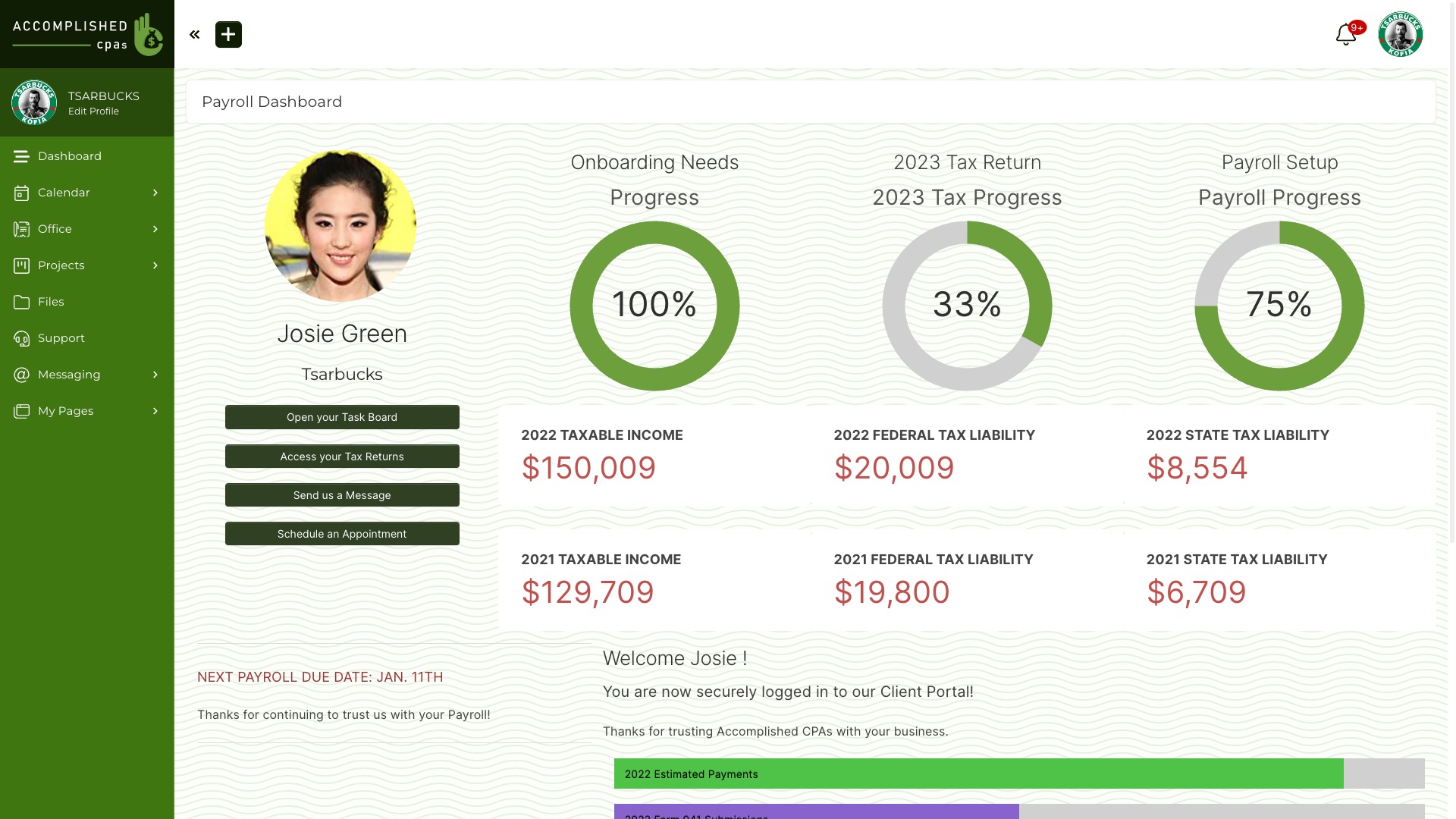
The Contact and Company Dashboards are relationship workspaces, not merely profile pages. They retain the selected record's context and surface items assigned to that Contact or Company.
The Dashboard can show profile information, Follow-ups, Notes, Deals, Files, Form Submissions, Projects, Tasks, CRM-specific RE: Tasks, Invoices, Expenses, Estimates, Proposals, Documents, Payments, Email Logs, and Login Logs. Email Logs retain the date, time, subject, and message of email sent to the record. Login Logs include login attempts and can identify a successful login or a failed attempt with a reason such as an incorrect password or 2FA code.
Dashboard quick actions let Staff add a Note, Deal, or Follow-up; send a Secure Message; upload Files; assign an On-Demand FLOW or Checklist; create a RE: Task or Invoice; generate a Document; grant or remove an LMS Product; apply Folder, Project, Task, Invoice, Follow-up, Recurring, Accumulating, or Deal Generators; trigger an Automation Template; manage the profile; set placeholder links; resend an invitation; and change a password when the state permits it. These actions create or open connected work; the connected tool's configuration remains authoritative.
Lifecycle, invitation, and access states
Commercial Role is not the same as login state
Use Lead for early tracking, Prospect when Portal eligibility and early relationship work are appropriate, and Client when active customer delivery and billing are appropriate. When changing a Role, review the invitation, Company relationship, Circles, connected assignments, and customer-facing Portal experience at the same time.
Not Invited, Invited, and activated are separate Portal conditions. Not Invited is a preparation state. Invited means an activation link was sent but has not been used. Activated means the account follows the configured Portal experience. Creating a Prospect or Client is therefore not an automatic notification or admission event.
Inactive preserves history; deletion does not
Set a Contact or Company Inactive when access should pause but history needs to remain. Inactive records cannot access the Portal, receive new Task or Invoice assignments, or be used for Secure Messaging or Chat. This supports a temporary customer pause, credit-control suspension, or retention of relationship history without current access. Use the Inactive list to view the record or Set Active when the relationship resumes.
Deletion is permanent. A Contact must first be inactive before it can be deleted. Confirm that history and associated data are no longer required before taking that irreversible step.
Paid Portal Access is a distinct onboarding route
Paid Portal Access is configured through a Client-role Kickoff Form and requires a Payment Gateway. It can require a one-time payment, a Subscription Payment, or both. Form completion creates the configured Invoice. The Contact registers through the invitation and reaches the Pay Invoice view, but cannot access the platform until payment completes. An assigned onboarding FLOW does not trigger until that Invoice is paid.
For Stripe ACH, Office > Settings > Paid Portal Access determines whether access is immediate or waits for payment clearance. A failed subscription connected to Paid Portal Access can be restored through Having Trouble? and Re-Subscribe on the login page. If access should be granted without payment, Cancel Required Payment from the Client's CRM options voids the required Invoice and grants access.
Sales workflow: Deals, pipelines, and Follow-ups
Use Deals for sales progress
A Deal is a card in a visual pipeline that progresses through stages to Won or Lost. Add one from the CRM Dashboard to connect the opportunity to the relationship. Use Deals for expected value, category, forecast timing, pipeline position, followers, and sales history. Do not use a Deal as an Invoice, invitation, or delivery-access mechanism.
Use separate pipelines when the sales processes are materially different. A Deal Generator creates a preconfigured Deal manually from CRM or through Automations. Its documented settings include a reference title, Deal title with dynamic placeholders, details, Category, based-on date, relative due date, expected value and currency, pipeline, individual or all-Staff followers, optional email notification, and stage-change Automations.
Use Follow-ups for the next scheduled action
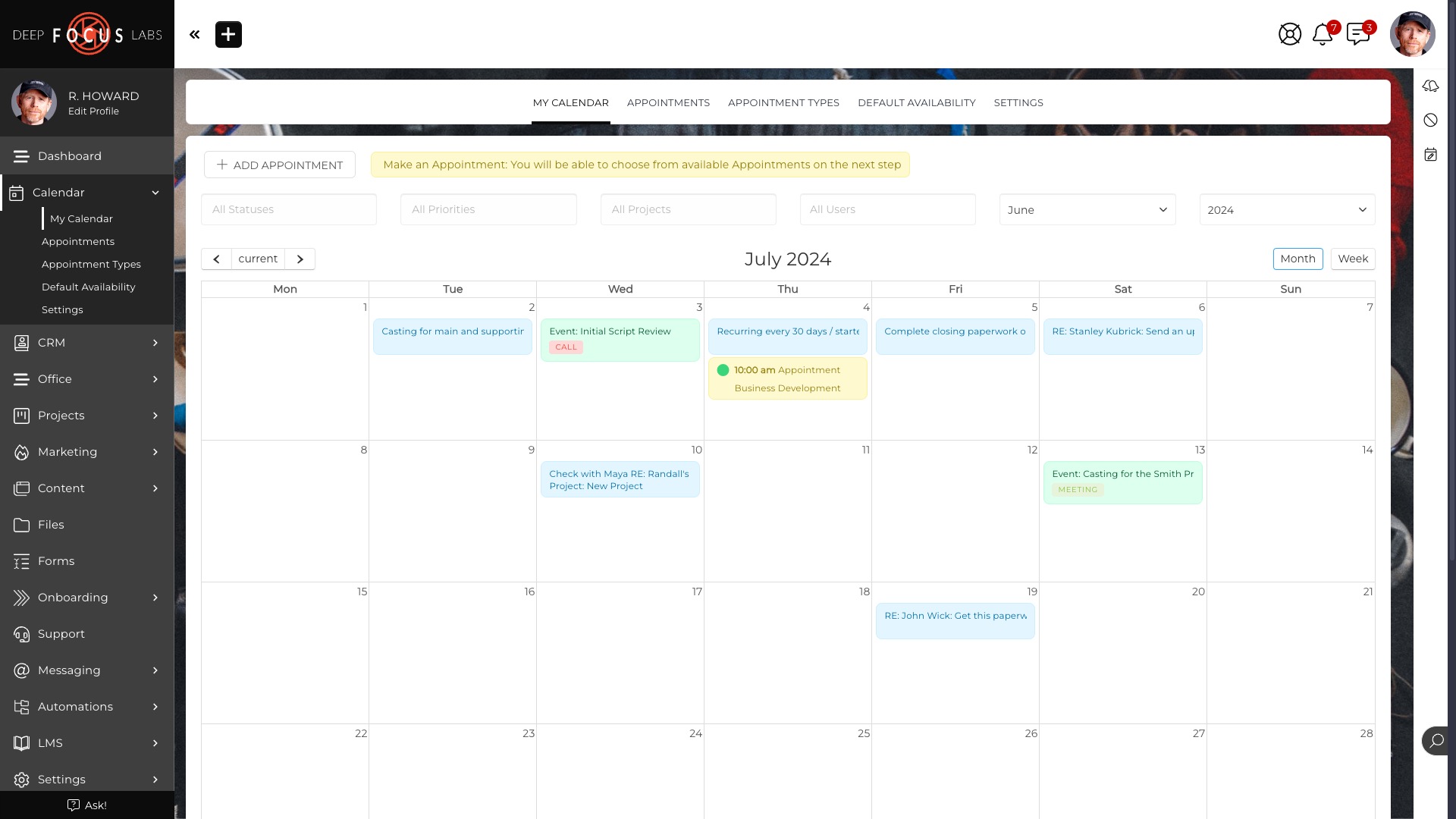
A Follow-up is a scheduled reminder visible on the Calendar. Add it when a salesperson or Coordinator needs a deliberate next action rather than relying on a note to be rediscovered. A Follow-up Generator is a preconfigured sequence that can be applied at record creation, through Kickoff Forms, Appointment Generators, Auto-Templates, or eligible Automation controls. Completion can trigger Automations, so verify the actual completion outcome before using it in a live workflow.
Coordinator and Salesperson solve different problems
Use Coordinator for a Staff point of contact and optional activity notifications. Use Salesperson and claiming for sales-team ownership and visibility. The same Staff member can serve both roles, but Coordinator does not create sales isolation and claiming does not create a customer-facing point of contact.
Import, Targeting, and Bulk Edit
Choose the import method by the record that should receive the outcome
SuiteDash documents three CSV routes:
- Import Contacts brings in individual people.
- Import Companies brings in organizations and can establish a Primary Contact; its configured import outcome is aimed at the Company.
- CRM Target Import brings a Company and Contact together per row, then explicitly chooses whether the Company or Contact is the Target for Automations and Target Custom Field values.
Contact Import maps individual data, default extra fields, Tags, Contact Custom Fields, and Company Custom Fields, then applies Role-dependent assignments such as Company, Primary Contact status, Circles, audiences, generators, FLOWs, Coordinator, and Salesperson. Company Import supports Company information, public/private Company Custom Fields, Target Custom Fields, and Company relationship data. Target Import maps the essentials—Company name, Contact name and email, Tags, Role, Target Type, and Target Custom Fields—rather than every entity-level field type.
Prepare data before import
CSV files must use UTF-8. The first row contains column headers and is used only for mapping. Choose whether each operation applies one Role to every row or maps a Role column. Target Import makes the same choice for Target Type.
Existing Company names in the CSV must exactly match the existing account record, including capitalization, punctuation, and spacing. To create a missing Company during Contact Import, enable the create-new-Company option. Map a yes/no Is Primary Contact column for Contact Import. In Target Import, the first imported Contact for a new Company becomes its Primary Contact and later Contacts are non-primary; the same Contact can be Primary Contact for several Companies.
Create Custom Fields before import whenever possible. Map checkboxes as checked/unchecked or 1/0, use one selected date format consistently, and match selection values to available Custom Field options. Multi-select radio and dropdown values use commas as the delimiter. Test a representative sample and inspect the resulting records before running a full customer list.
Use Bulk Edit deliberately
From the Contact or Company list, select individuals, a Circle, or a filtered subset, then open Bulk Edit. It can update applicable default and Custom Fields, including supported Company public/private fields, Coordinator, and Salesperson. Filter first, inspect the selected population, make one intentional broad change, and verify representative records afterward.
Common operating patterns
Turn an inquiry into an accountable relationship
- Create a Lead Contact or Lead Company.
- Add Notes and a Follow-up so the next action reaches the Calendar.
- Create a Deal in the appropriate pipeline and add the responsible Staff followers.
- When the relationship becomes a Prospect, decide whether a Company relationship, Coordinator, Circle, Portal experience, or onboarding path is intended.
- Invite only when that experience is ready; keep the record Not Invited while preparing it.
Onboard a business customer with several people
- Create the Company and assign a Primary Contact with an email address.
- Decide whether individual profile switching is appropriate for that person.
- Associate additional people as Contacts; use Secondary Clients only where a Project needs a client-side team.
- Configure Project, Task, File, billing, and Portal access in their respective tools.
- Use the Company Dashboard to preserve relationship Notes, Deals, Follow-ups, and history as the team changes.
Bring an existing customer list into a controlled model
- Choose Contact, Company, or Target Import based on the entity that should receive downstream outcomes.
- Create needed Custom Fields, Categories, Circles, audiences, and generators before mapping.
- Normalize Company names and CSV encoding, then run a representative sample.
- Validate Roles, Primary Contacts, Target Type, field values, ownership, and selected generators or FLOWs.
- Use filtering and Bulk Edit only after confirming that records represent the intended population.
Expectations and guardrails
- CRM organizes the relationship; it does not expose every connected Project, File, invoice, form, or Portal page.
- A Lead cannot enter the Portal. A Prospect or Client still needs the intended invitation and connected configuration.
- A Prospect or Client Company needs a Primary Contact with an email address. An Idle Company has no Primary Contact and cannot support normal human-facing interactions.
- Company and Primary Contact Roles are independent. Preventing Individual Mode intentionally hides that Contact from most platform areas.
- Secondary Clients can see an enabled Project Overview Dashboard for Projects they are assigned to, but do not automatically see Tasks assigned to the Primary Client. As Task followers, they see Task details but do not edit the Task.
- Inactive is reversible; deletion is not. Test imports before broad changes, especially when Target Type, exact Company matching, Roles, and Custom Field mapping matter.
Frequently asked questions
Is a Company just another name for a Contact?
No. A Company is a business record with associated Contacts. The Primary Contact is the person who represents it in the Portal.
Can I add someone now and invite them later?
Yes. A Prospect or Client can remain Not Invited while the Portal experience is prepared. They cannot access the Portal or receive normal assignment notifications until invited.
Which record should an Automation target?
Choose the Company or Contact that is meant to receive the outcome. CRM Target Import asks explicitly for that choice; Target Custom Fields are the cross-profile field option when the workflow needs one field type for either Target.
Can I pause a customer without losing history?
Yes. Set the Contact or Company inactive. This removes access and blocks new assignments and messaging while preserving the record for later reactivation.